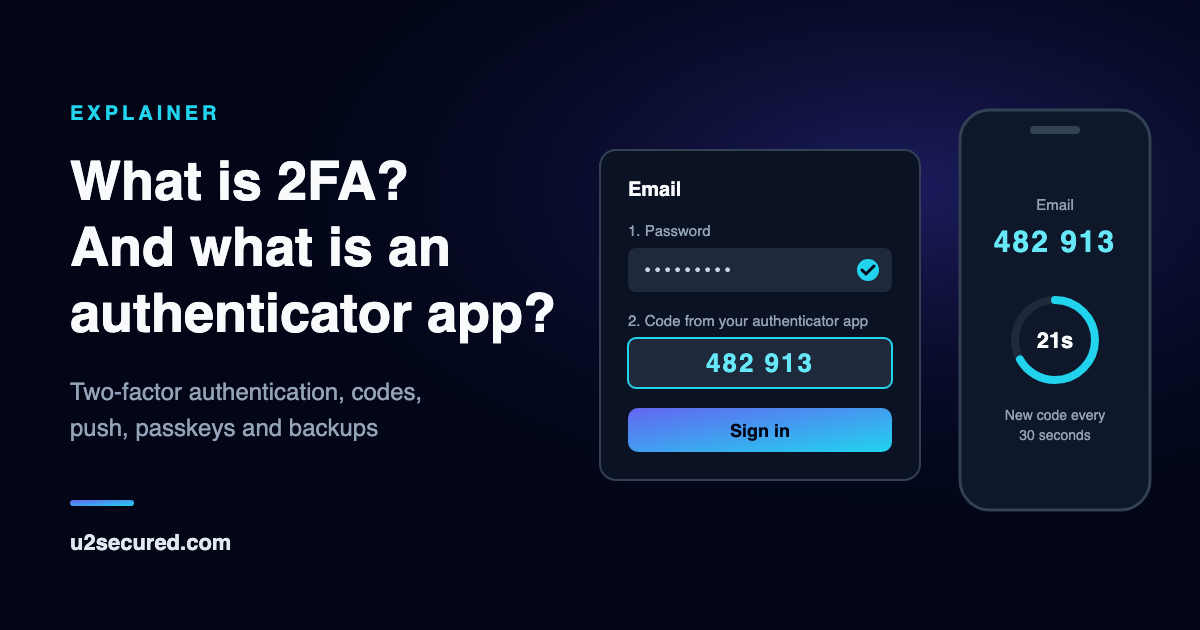
What is 2FA?
Every sign-in asks you to prove you are you. There are three kinds of proof, called factors: something you know (a password or PIN), something you have (your phone or a security key) and something you are (a fingerprint or your face). Two-factor authentication asks for two of the three, from different kinds.
The point is that the two fail separately. Passwords leak in data breaches, get reused and get typed into fake sites. A thief who has your password from a breach does not also have your phone, so the sign-in stops at the second step. That is why sites ask for it on email, banking, shopping and gaming accounts alike.
You will see it under several names: two-factor authentication, two-step verification, 2-step verification, login verification or security codes. A “2FA code” or “verification code” is simply the second step: the number a site asks for after your password.
Other names for 2FA
Two-step verification, 2-Step Verification and login verification are the names many companies give the same feature, and MFA, multi-factor authentication, is the wider term that covers two or more factors. Our guide to 2FA vs MFA sets out exactly where the terms differ and ranks every method from weakest to strongest.
The common kinds of second factor
Sites offer one or more of these. They are not equally strong, and the next section says what each still lets through.
- SMS or voice codes: the site texts or calls your phone number with a one-time code. Easy, because it needs no app, but it is tied to your phone number rather than your phone.
- Authenticator app codes (TOTP): an app on your phone shows a new six-digit code every 30 seconds. The site and the app share a secret, so nothing is sent at sign-in.
- Push approval: the site sends a prompt to an app on your phone and you tap to approve. The better versions use number matching: the sign-in screen shows a number and you pick the same one on your phone, so you cannot approve a request without looking at it.
- Passkeys and security keys: your phone, computer or a small USB/NFC key proves who you are with a key pair, unlocked with your fingerprint, face or PIN. The secret never leaves the device, and many sites let a passkey replace the password entirely.
- Backup codes: a list of one-time codes the site gives you when you turn 2FA on, for when your usual second factor is not available.
Is 2FA safe? What each kind still lets through
Any 2FA is far better than none: CISA, the US cybersecurity agency, says exactly that. But the kinds differ in what an attacker can still do, and it is worth knowing which you are using.
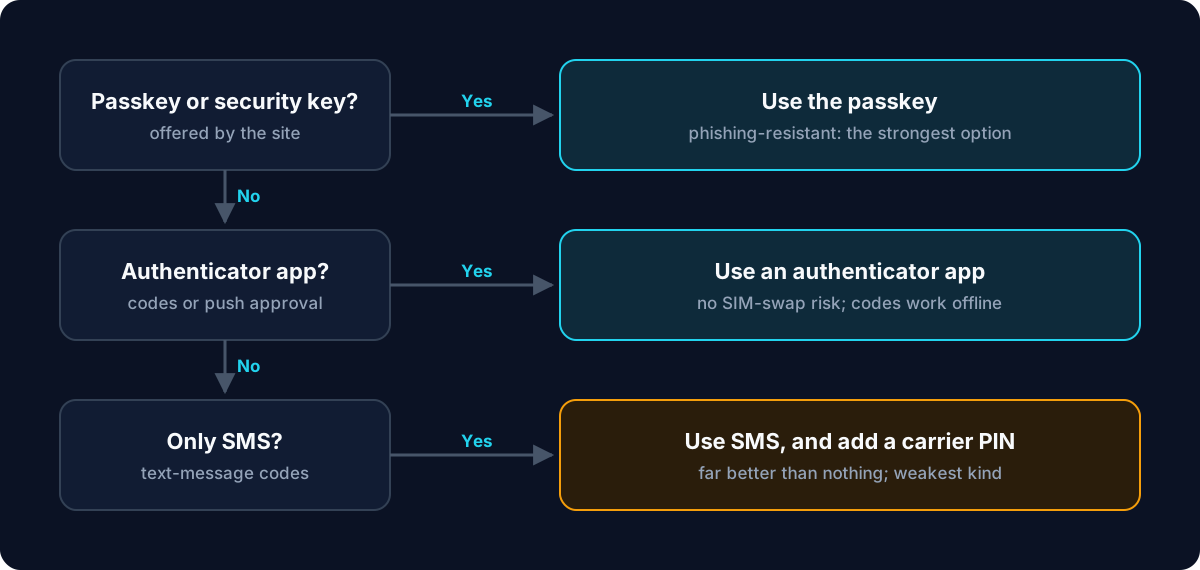
SMS codes are the weakest. Your codes go wherever your phone number goes, and criminals can talk a mobile carrier into moving your number to their SIM card (a SIM swap). Text messages can also be intercepted inside the phone network. CISA advises not to use SMS as a second factor where you have a choice.
Authenticator app codes and push approvals are not affected by SIM swaps, because they live in an app on your phone, not on your number. They can still be phished, though. A fake sign-in page can pass your password and code to the real site within seconds, a real-time phishing proxy, and the same trick works on a push approval that you accept because you believe you are signing in. Number matching stops push spam (a flood of prompts sent in the hope that you tap Approve), but it cannot tell a real site from a convincing copy.
Passkeys and security keys are the only common kind that is phishing-resistant. The browser checks which website is asking before the key answers, so a lookalike site gets nothing to replay. If a site offers a passkey, use it.
Never read a code to anyone or approve a prompt you did not start. No real company calls you to ask for a 2FA code. If you get a code or a prompt you did not ask for, someone has your password: change it.
Is SMS 2FA good enough?
It is much better than a password alone, but an authenticator app is safer. The app is not tied to your phone number, so a SIM swap or an intercepted text cannot reach it, and it keeps working with no signal, abroad or in flight mode. It is also often quicker: no waiting for a text to arrive.
SMS still has a place when a site offers nothing else: it is much better than a password alone. If you have to use it, add a PIN or passcode to your mobile phone account, which makes a SIM swap harder, and switch to an app or passkey as soon as the site offers one. When you do switch, turn SMS off too, or it stays as a weaker way in.
What is an authenticator app?
An authenticator app is a phone app that holds the second factor for your accounts. Each account you add appears as a row with its name and a six-digit code that changes every 30 seconds. When a site asks for a code, you open the app and type in the current one.
Any standard authenticator app works with any site that says “use an authenticator app”, because they all follow the same open standard, TOTP. You do not need the app a site happens to mention by name. Some apps add more: push approvals, passkeys, a lock on the app itself, or an encrypted backup.
Where the six-digit codes come from
When you turn on 2FA, the site creates a random secret for your account and shows it as a QR code. Your app scans it, and from then on both sides hold the same secret. It is never sent again.
To make a code, the app combines that secret with the current time, counted in 30-second steps, and turns the result into six digits. The site does the same calculation on its side. If the two numbers match, you had the secret, which means you had the phone. This is TOTP, time-based one-time passwords, published as RFC 6238.
Because the code is made from the secret and the clock, the app needs no internet connection, no signal and no account: it works in flight mode. What it does need is the right time, so leave your phone’s date and time set to automatic. Sites usually allow for a few seconds of difference, but a clock that is minutes out produces codes that never work.
It also explains the catch: the secret exists only on your phone, and the site will not send it again. Lose the phone with no backup, and the codes are gone with it. Our guide to how authenticator apps work goes step by step through the codes, push approvals and passkeys.
How to set up 2FA with an authenticator app
The steps are nearly identical on every site. Set aside five minutes and do your email account first, because every other account can be reset through it.
- Install an authenticator app on your phone.
- On the site, open the security settings and choose two-factor authentication, two-step verification, or “authenticator app”.
- Scan the QR code the site shows with the app. If you cannot scan, most sites show a text key you can type in instead.
- Type the six-digit code the app now shows back into the site to confirm it works.
- Save the backup codes the site gives you somewhere that is not your phone: printed, or in a password manager you can open on another device.
- Turn on your app’s backup if it has one, then repeat for your other important accounts.
What happens when you change or lose your phone
The secrets live on the phone, so plan for the day it goes. Two things protect you: the backup codes from each site, which get you into that one account with no phone at all, and an app backup, which brings every code back on a new phone. Our guide to authenticator app backup covers how to turn it on in each of the big apps, and what to do if the phone is already gone.
Moving to a new phone on purpose is easier: most apps can transfer your codes while you still have the old one. We have step-by-step guides for Google Authenticator, Microsoft Authenticator and Authy, linked at the end of this post. Keep the old phone until you have signed in to a few accounts with the new one.
U2 Secured Authenticator
U2 Secured Authenticator is our authenticator app for iPhone and Android. On the free plan, codes are unlimited, the app locks with Face ID or your fingerprint, and the codes work with no signal. It works with any site that offers an authenticator app.
Coming from Google Authenticator takes one scan on either plan: export your accounts in Google Authenticator, then in U2 Secured tap +, then Bulk import, then Import from Google Authenticator, and scan the export QR code.
On services built on U2 Secured, signing in can send a prompt to your phone instead: you pick the number that matches the sign-in screen and confirm with Face ID or your fingerprint. Like every push approval, it stops push spam but does not make a fake site safe, so check the address before you approve. The app keeps a history of each request and how it ended, so a sign-in you did not start stands out, and you can choose to attach your location to an approval; the service then sees only the city, region and country, never the exact point.
On every plan you can set the app to lock the moment you leave it, and hide codes until you tap one, for when someone can see your screen.
Premium, at $14.99 a year, adds an end-to-end-encrypted backup: your codes are encrypted on your phone before anything is uploaded, so we store only ciphertext. It is zero-knowledge: only your password or your recovery key can open it, and we hold neither. It restores on a new iPhone or Android phone and shows your live codes, read-only, in any browser through the web portal. On the free plan there is no cloud backup, so the backup codes from each site are your safety net.