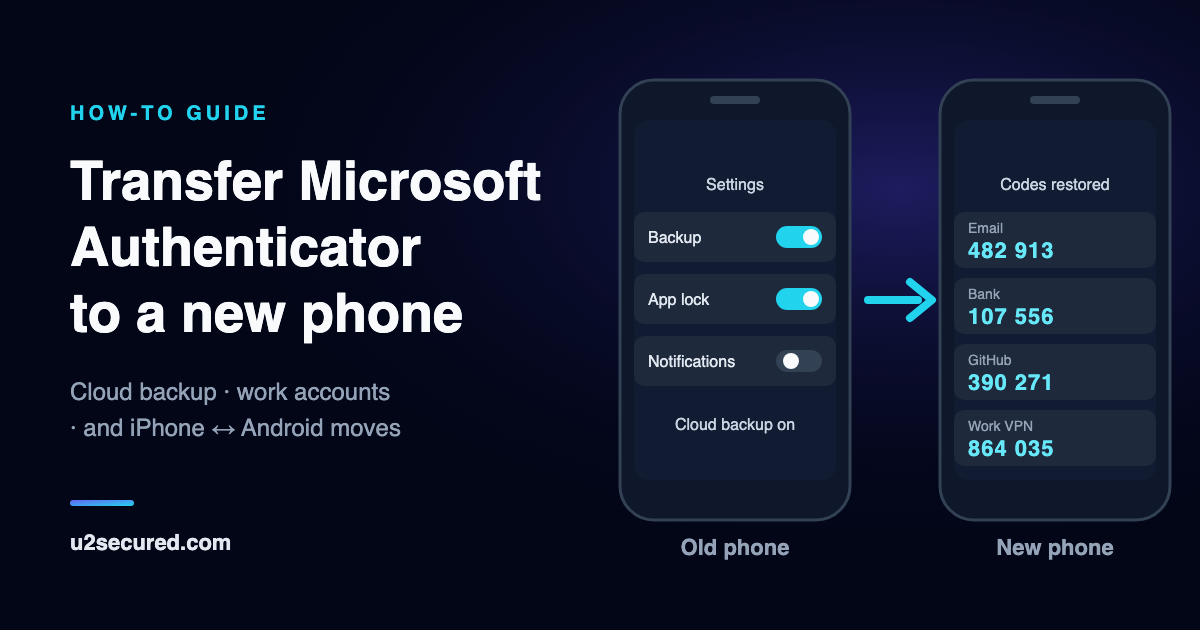
Which way to transfer Microsoft Authenticator
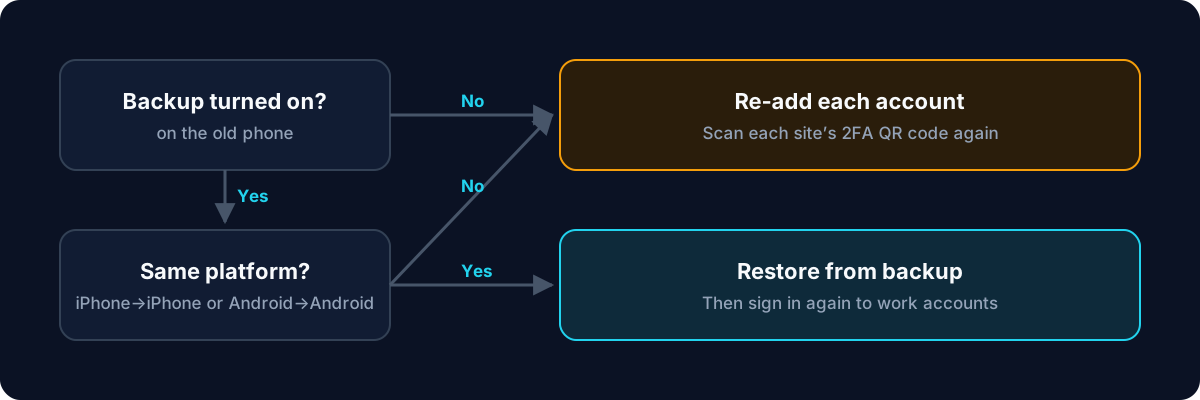
Two questions decide it. Was backup turned on in Microsoft Authenticator on the old phone? And is the new phone the same kind as the old one, iPhone to iPhone or Android to Android? Microsoft’s rule is blunt: you can only back up and restore on the same device type.
- Backup on, same platform: restore from backup (below), then sign in again to any work or school account.
- Switching between iPhone and Android, or backup was off: re-add each account by scanning its 2FA QR code again. Keep the old phone working until you have.
- Old phone lost and no backup: recover each account separately, usually with its backup codes.
What Microsoft Authenticator backup moves, and what it does not
Microsoft’s own documentation splits it by account type. Knowing this before you start saves a confused hour afterwards.
- Third-party accounts (Amazon, Facebook, Gmail and so on): the 30-second code is backed up and restored.
- Personal Microsoft accounts: the code is restored. If the account also used passwordless sign-in, only its name comes back and you sign in again.
- Work or school accounts: only the account name is restored. You open the account and sign in again, and you may see “Sign in to add your account.”
- Passkeys are handled separately. One saved only on the old phone does not move: you add a new one on the new phone.
Back up Microsoft Authenticator on the old phone
Do this before you reset, trade in or recycle the old phone. On an iPhone, the backup rides on iCloud. Turn on iCloud Drive, iCloud Keychain and iCloud Backup, then go to Apple Account > iCloud > Saved to iCloud, find Authenticator and turn it on.
On Android, open Microsoft Authenticator, open the menu, choose Settings, turn on Cloud Backup, and pick the Microsoft personal account to store it in. That account is your recovery account, and you will need it on the new phone.
Microsoft says that from January 2027, Android backup will no longer use a Microsoft personal account: you will turn on Microsoft Authenticator in Google One backup instead. If you are moving an Android phone around then, check which one your backup is using before you rely on it.
Restore Microsoft Authenticator on the new phone
On a new iPhone signed in to the same Apple Account, with the same iCloud settings on, install Microsoft Authenticator and open it. Your backed-up codes and account names appear.
If the app offers Begin recovery or Restore from backup, choose it before signing in to anything, and sign in with the personal Microsoft account the backup was saved to. If neither option appears, sign out of or remove any accounts already in the app first: it will not restore over existing entries.
Then go through the list. Any account showing “Sign in to restore your account” or “Sign in to add your account” needs you to sign in again before it works.
Re-register a work or school account on the new phone
Work and school sign-ins are not backed up, by design, so every move ends with signing in again. Open the account in Microsoft Authenticator and sign in. If your organisation uses passkeys, sign in with the old phone first, then go to Security info at aka.ms/mysecurityinfo, choose Add sign-in method and set up a passkey for the new phone. Test it before removing the old one.
If your IT team does not allow you to add sign-in methods yourself, or the old phone is already gone, only they can re-register you. Contact your help desk; there is no way around this from the app.
Transfer Microsoft Authenticator from iPhone to Android (or Android to iPhone)
Here the backup cannot help: an iOS backup cannot be restored on Android, and Microsoft Authenticator has no export feature to carry codes across. Moving platforms means adding each account to the new phone yourself, while the old phone still works:
- For each site, sign in on a computer, open its security or two-step verification settings, and choose to add or replace the authenticator app. Scan the new QR code with the new phone.
- Confirm one code from the new phone on that site, then remove the old entry from the old phone.
- For work or school accounts, sign in again on the new phone as above, and use Security info to add the new phone.
Lost phone: how to recover Microsoft Authenticator without the old phone
If backup was on and the new phone is the same platform, the restore steps above still work: the backup lives in iCloud or in your Microsoft personal account, not on the old phone. Work and school accounts still need your IT help desk.
If there was no backup, there is nothing to restore. Recover each account on its own: sign in with one of the backup or recovery codes the site gave you when you set up 2FA, or use its account-recovery process, then set up two-step verification again with the new phone.
Keep the old phone until everything works
Microsoft’s advice is to keep the old phone until you have confirmed you can sign in to the accounts you use most from the new one. Check your work account and two or three of your most important personal accounts. Only then reset the old phone.
Change phones without the iPhone–Android lock
The awkward parts of a Microsoft Authenticator move come from where its backup lives: in iCloud on an iPhone and in a Microsoft (soon Google One) account on Android, which is why it cannot cross between them. U2 Secured Authenticator keeps its backup in your U2 account instead, encrypted on your phone before it is uploaded so we store only ciphertext. That means you can restore it on an iPhone or an Android phone, whichever you buy next.
Codes are free and unlimited. The encrypted backup and moving to a new phone are Premium, at $14.99 a year. Microsoft Authenticator has no export, so to switch you add each account by scanning its setup QR code, the same steps as an iPhone–Android move above. If your organisation requires Microsoft Authenticator for your work account, keep it for that account: U2 Secured is for the rest.
Like any backup, it only helps if it is turned on before the phone is lost. And no authenticator app can restore codes that were never backed up.