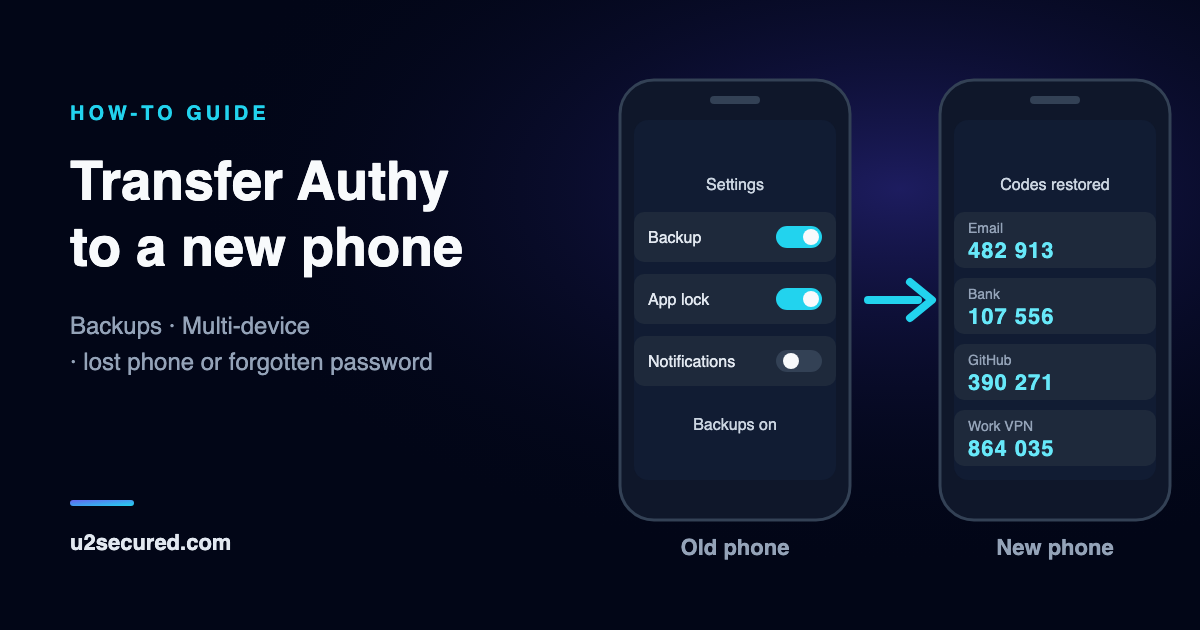
Which way to transfer Authy
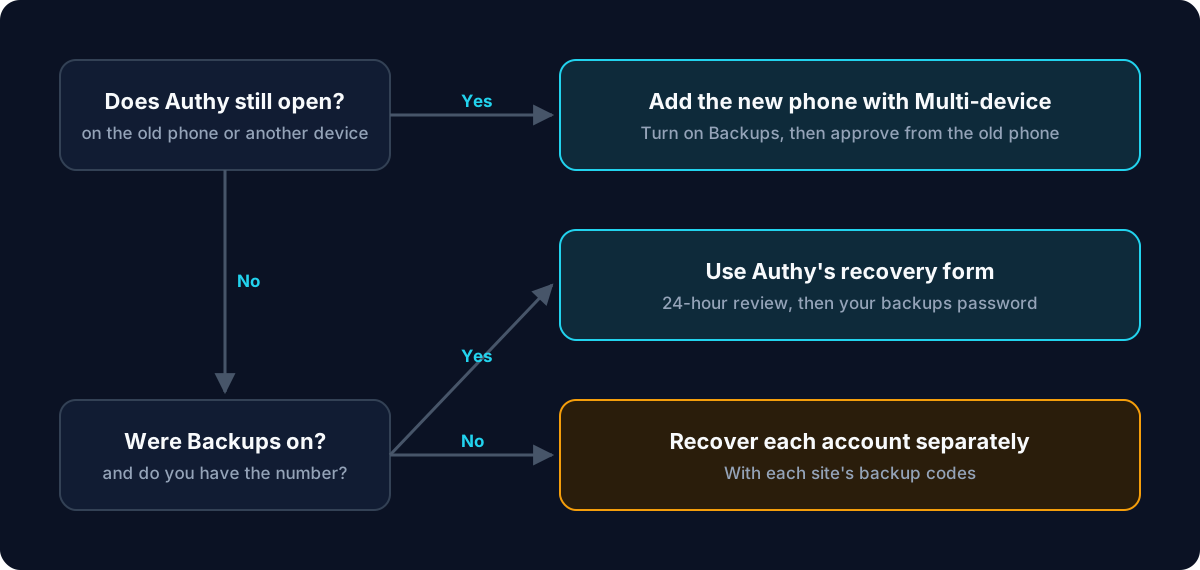
Two questions decide it. Does Authy still open on the old phone or another device? And were Backups turned on?
- Authy still works on a device: turn on Backups there if they are off, then add the new phone with Multi-device (below).
- No working device, but Backups were on and you still have the phone number: use Authy’s recovery form, then enter your backups password.
- No working device and Backups were off: those codes are gone. Recover each account separately, usually with its backup codes.
What you need before you start
An Authy account hangs on two things, so check you have both while the old phone still works:
- The phone number you registered with. A new install asks for it, and confirming it is how Authy finds your account.
- Your backups password, which some Authy screens call the backup key. It encrypts your codes on your device and, as Twilio puts it, is never sent to or stored on its servers. Your codes cannot be unlocked on the new phone without it.
Twilio says Authy Support cannot recover a lost or forgotten backups password. If you are not sure you remember yours, change it on the old phone now, while the codes there are still unlocked: Settings, Accounts tab, Change Password (Twilio also calls this Change Backup Key).
Transfer Authy to a new phone with the same number
Do this with both phones in hand, before you reset or trade in the old one.
- On the old phone, open Settings, then the Accounts tab, and make sure Backups is on. Android labels the switch Backups; iPhone labels it Backup Password.
- Still in Settings, open the Devices tab and turn on Allow Multi-device.
- Install Authy on the new phone and enter the same phone number.
- On the old phone, accept the request. When asked to approve it, type OK.
- On the new phone, enter your backups password. Until you do, your accounts stay greyed out and Authy will say “You must decrypt your tokens.”
- Check a code from the new phone on a site you use. Then, on the new phone, open Settings, then Devices, tap the old phone and choose Remove device.
- Turn Allow Multi-device off again. Twilio advises this once your devices are set up.
Authy says Multi-device is disabled
The setting lives on the device you already have, so the new phone cannot change it. Turn on Allow Multi-device on the old phone and try again. If the old phone is gone or will not open Authy, there is nothing to turn on: use Authy’s recovery form, described under the lost-phone section below.
Transfer Authy to a new phone with a new number
Change the number while the old phone still works, because that is the fast route. On an iPhone, open Settings, tap the phone number field, enter the new number and tap Change Phone. On Android, open Settings, tap Cellphone Number and do the same. Confirm with the PIN sent by call or SMS, then move to the new phone as above.
If the old number is gone and no Authy install still works, you have to use Authy’s online phone-change form. Twilio says this takes 2 to 4 business days and cannot be rushed. Requests are not accepted by email.
Transfer Authy from iPhone to Android (or Android to iPhone)
The steps are the same as moving to a phone of the same kind. Twilio describes Backups as syncing your codes across multiple devices and device types, and Authy has its own apps on the App Store and Google Play. The menus differ slightly: on Android, Settings is under the … menu at the top right.
Lost phone: how to recover Authy without the old phone
If you still have the phone number, use Twilio’s Recover Access to Authy form. It says the process keeps all backed-up accounts, and that requests take 24 hours to review. Twilio’s help pages warn that the wait could be up to 48 hours. Afterwards, install Authy on the new phone and enter your backups password.
The same form is blunt about the other case: a code added to Authy and never backed up is lost. Recover those accounts one site at a time, using the backup or recovery codes each site gave you when you set up 2FA, or its account-recovery process. Then set up two-step verification again on the new phone.
Forgot your Authy backups password
Twilio says it cannot be recovered or reset by anyone. If another device still shows your codes, change the password there: Settings, Accounts tab, Change Password. That is the easy case.
If no device can show your codes, they are permanently inaccessible, and Authy blocks you from adding new accounts until they are removed. Twilio’s procedure is to start those accounts again:
- Turn off 2FA in each site’s security settings, using that site’s recovery codes or its support team if you cannot sign in.
- Delete the encrypted accounts that remain in Authy.
- Change the backups password. Authy allows it once those accounts are removed.
- Add your accounts to Authy again.
Can you export codes from Authy?
No. Twilio says plainly that the Authy app lacks an export feature. The Authy Desktop apps, which reached end of life on March 19, 2024, are gone too, so older guides that pull codes out through the desktop app no longer apply. Be wary of any unofficial tool that asks for your backups password: it would be able to read every code you have.
To move to another authenticator app, add each account again from the site’s own settings:
- Sign in to the site on a computer and open its security or two-step verification settings.
- Choose to add or replace the authenticator app, and scan the QR code with the new app.
- Confirm a code from the new app on that site.
- Only then remove the account from Authy. Twilio warns to turn off 2FA first if you delete an account without replacing it, because deleting the entry alone does not remove the site’s 2FA requirement.
Keep the old phone until everything works
Check your most important accounts from the new phone before you reset the old one, and remove the old phone from your Authy devices before you sell or give it away. Twilio asks for this too: until it is removed, that device still has access to your codes.
Change phones without depending on a phone number
Most of the hard cases above come back to the phone number your Authy account is tied to. U2 Secured Authenticator signs you in with your email address and never asks for a phone number. With Premium, your codes are encrypted on your phone before they are uploaded, and you can restore them on an iPhone or an Android phone. When you set up the backup, you also save a recovery key, so a forgotten password does not mean starting again.
Since Authy Desktop ended, there is also the question of getting a code on a computer. With Premium, the U2 Secured web portal shows your live codes in any browser, read-only and decrypted on your computer.
Codes are free and unlimited. The encrypted backup and moving to a new phone are Premium, at $14.99 a year. Authy cannot export, so to switch you add each account by scanning its setup QR code, as in the steps above. In U2 Secured, tap + and scan.
Like any backup, it only helps if it is turned on before the phone is lost. And if you lose both your password and your recovery key, we cannot open your backup either: we never hold the key.