Which way to transfer Google Authenticator
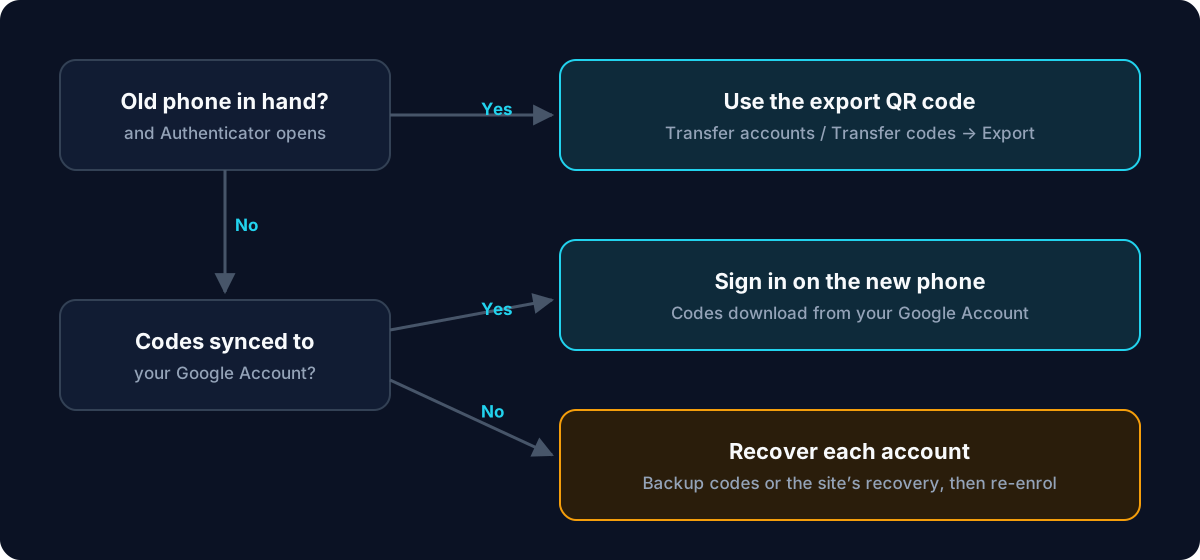
If you signed in to a Google Account inside Google Authenticator, your codes are synced to that account. If you never signed in, they live only on the old phone. Not sure? Open the app on the old phone while you still can and check whether it shows a signed-in Google Account.
- Old phone in hand, codes not synced: use the export QR code (next section). This is the most reliable route.
- Codes synced to your Google Account: sign in on the new phone and they appear. This works even if the old phone is gone.
- Old phone lost or broken, and no sync: there is nothing to transfer. You recover each account separately, usually with its backup codes.
Transfer Google Authenticator with the export QR code
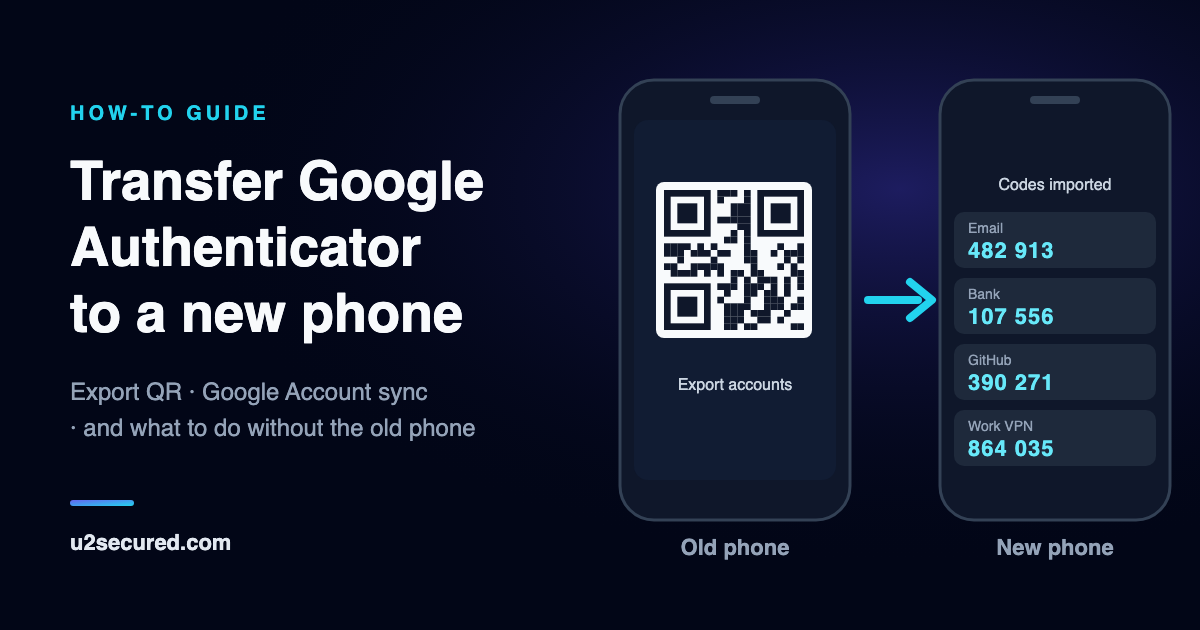
This works on any phone, and the two phones never need to connect to each other: the old phone shows a QR code and the new phone scans it. Update Google Authenticator on the old phone first; Google says the transfer needs the latest version there.
On the new phone, install Google Authenticator and open it. Then follow the menu path for your old phone. Google names it differently on each platform:
- Old iPhone: tap the Menu icon, then Transfer accounts, then Export accounts. Choose the accounts to move and tap Next.
- Old Android phone: tap the Menu icon, then Transfer codes, then Export codes. Unlock the phone when asked, choose the accounts, and tap Next.
- New phone: tap the Menu icon, then Transfer accounts (iPhone) or Transfer codes (Android), then Import, and scan the QR code on the old phone.
- With many accounts, the old phone shows several QR codes in turn. Scan every one before you close the screen.
Anyone who photographs that QR code gets permanent copies of every code in it. Export somewhere private, and never send a screenshot of it to yourself by email or chat.
Set up Google Authenticator on a new phone with Google Account sync
If your codes were synced, there is nothing to export. Install Google Authenticator on the new phone, tap Get started, and sign in with the same Google Account. Your codes download and appear in the list. Sync needs Google Authenticator 4.0 or later on iPhone and 6.0 or later on Android.
Sync is convenient, and it is also why this route works when the old phone is gone. The trade is that your 2FA secrets live in your Google Account, so whoever gets into that account gets them too. In 2023, the software company Retool said exactly that happened: one phished Google account exposed an employee’s Authenticator codes along with it.
Transfer Google Authenticator from iPhone to Android (or Android to iPhone)
Both methods above work across platforms. The export QR code is just a picture, so an Android phone can scan one shown by an iPhone, and the other way round. Sync is tied to your Google Account, not to Apple or Google’s phone platform. The only difference is the menu names on each side: Transfer accounts on iPhone, Transfer codes on Android.
What does not move across is anything stored outside Google Authenticator itself. Verification codes saved in Apple’s Passwords app, for example, belong to Apple’s system, not to Google Authenticator, and need moving separately.
Lost or broken phone: how to recover Google Authenticator without the old phone
First, protect the lost phone. Erase it remotely with Apple’s Find My (iPhone) or Google’s Find Hub, formerly Find My Device (Android), if you can. If your codes were synced, also remove the old phone from your Google Account’s devices, then use the sync route above on the new phone.
If the codes were not synced, they existed only on that phone, and no app or service can bring them back. Google’s own advice is to visit every site where you set up Authenticator, remove the old code, and link the new phone. For each account:
- Sign in with one of the backup codes (also called recovery codes) the site gave you when you turned on 2FA.
- No backup codes? Use the site’s account-recovery flow. Most ask for an email or SMS confirmation, or proof of identity.
- Once in, turn two-step verification off and on again, and scan the new setup QR code with the new phone.
- Save the new backup codes somewhere safe that is not your phone.
Google Authenticator not working on the new phone? Check the time
If codes appear but sites reject them, the phone’s clock is almost always the cause. Authenticator codes are calculated from the current time, and since version 7.0 Google Authenticator uses the phone’s own time setting with no correction option inside the app.
Set the date and time to automatic in the phone’s settings, then try a fresh code. If one account still fails, that account’s QR code may not have been in the export. Check the old phone, or re-enrol that account.
Before you wipe the old phone
Sign in to two or three of your most important accounts using codes from the new phone. Only when those work should you delete the accounts from the old phone, or reset it. Then delete the old phone’s copy deliberately rather than leaving a second working set of your codes in a drawer.
Never lose your codes on a phone change again
The reason a lost phone hurts is that the codes had no backup you control. U2 Secured Authenticator gives you free, unlimited codes. Premium ($14.99 a year) adds an end-to-end-encrypted backup: it is encrypted on your phone before upload, so we store only ciphertext. Your next phone change is a sign-in and a restore, and the old phone is wiped when the new one takes over.
To bring your Google Authenticator accounts across, there are two ways. With Premium, the web portal’s Import page reads Google’s export: paste the text of the export QR code (an otpauth-migration link, which a QR-reader app will show you) or upload it as a .txt file. On the free plan, add each account by scanning its setup QR code from that site’s security settings.
A backup only helps if it exists before the phone is lost. U2 Secured cannot recover codes that were never backed up, from Google Authenticator or anywhere else.