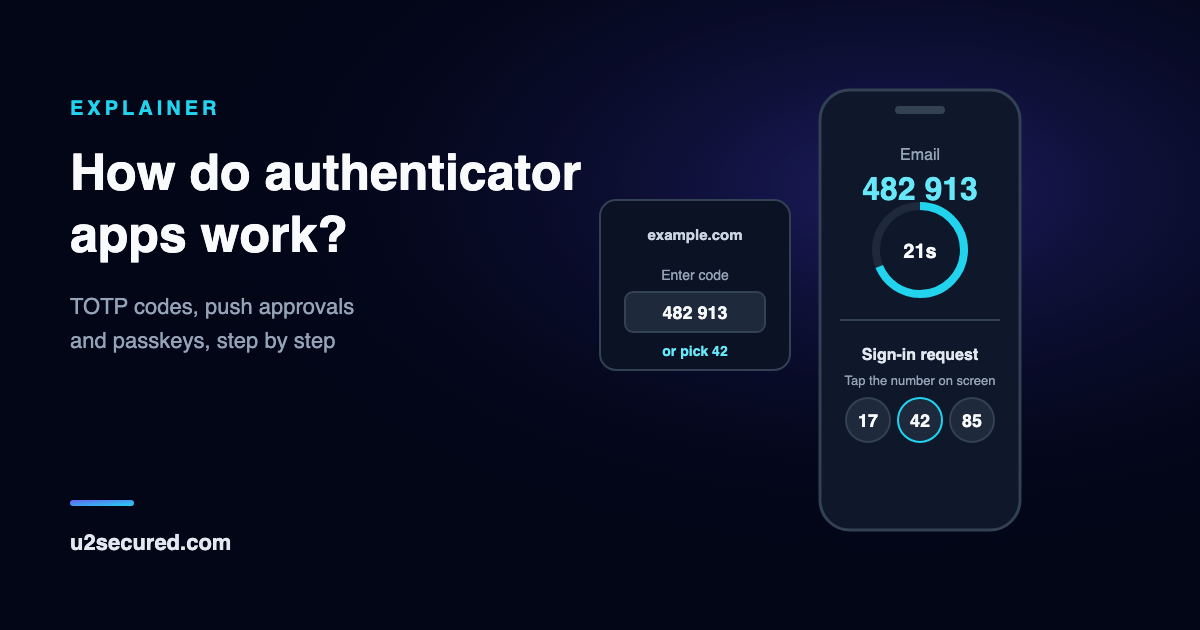
How does TOTP work? The shared secret and the clock
The codes come from an open standard called TOTP, time-based one-time passwords, published by the IETF as RFC 6238. Every mainstream authenticator app implements the same standard, which is why any of them works with any site that offers “an authenticator app”.
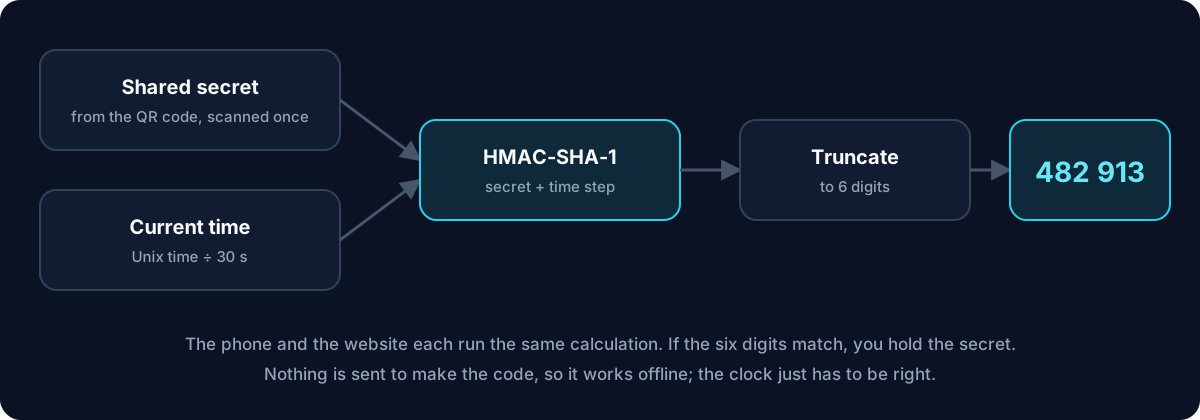
Setting up is the only moment anything is exchanged. The site creates a random secret for your account and shows it as a QR code, usually with a text version underneath. Your app scans it and stores the secret. From then on, the site and your phone each hold an identical copy, and it is never sent again.
To make a code, the app counts how many 30-second steps have passed since 1 January 1970, the standard Unix start time. It feeds that number and the secret into HMAC, a keyed hash function (SHA-1 by default, with SHA-256 and SHA-512 allowed), and cuts the result down to six digits. When you type those digits, the site runs the identical calculation with its copy of the secret. A match proves you hold the secret, which means you hold the phone.
How do authenticator codes work across that 30-second boundary? Sites accept a small window. The standard recommends allowing at most one time step either side for network delay, so a code typed a few seconds after it changed still works. That is also why a phone clock that is minutes out produces codes that are always rejected: keep date and time set to automatic.
- Set-up, once: the site makes a secret and shows it as a QR code; the app scans and stores it.
- Every 30 seconds: the app combines the secret with the current time step.
- HMAC: the pair goes through a keyed hash, and the output is truncated to six digits.
- Sign-in: you type the code; the site repeats the calculation and compares.
- Expiry: the code stops working one time step later, so a copied code is useless within a minute or so.
How do authenticator apps work without internet?
Because making a code needs only two ingredients that are already on the phone: the secret, stored at set-up, and the time, kept by the phone’s own clock. The app sends nothing and receives nothing. Codes work in flight mode, abroad with roaming off, and in a basement with no signal.
Two things do need a connection. Push approvals, covered next, arrive over the internet. And so does anything an app offers on top of the codes, such as a cloud backup or sync. If an authenticator app ever says it has no internet connection, it is talking about one of those, not about its codes.
How push approval with number matching works
Some authenticator apps can approve a sign-in instead of showing a code. This only works with services that integrate with that particular app, because the service has to send the request; standard TOTP needs no such link.
You pair the phone with the service once. At sign-in, the service asks the app’s provider to deliver a notification to your phone. You open it, see what is asking (for example, “Sign-in from Chrome on Windows”), and approve or deny. The service learns the answer a second later and lets you in.
The weak version of this is a single Approve button. Attackers who already have a password learned to send prompt after prompt, late at night, until a tired user tapped Approve to make them stop: push bombing, or MFA fatigue. Number matching is the fix. The sign-in screen shows a number, the phone offers a few, and only the matching one approves. You cannot approve without looking at the screen you are signing in on, which reduces push fatigue approvals.
What number matching does not do is tell a real site from a fake one. If you are on a convincing phishing page that relays your sign-in to the real service in real time, the number on that page is the real number, and approving it signs the attacker in. US government guidance (CISA) lists push with number matching, like app codes, as still vulnerable to phishing.
Authenticator app vs passkey
A passkey is a different mechanism, and a stronger one. Instead of a shared secret that both sides hold, a passkey is a key pair: the private key stays on your device and the website keeps only the public key. At sign-in, the site sends a random challenge, your device signs it after you unlock with your face, fingerprint or PIN, and the site checks the signature.
The crucial difference is that your browser tells the passkey which website is asking, and a passkey made for one site will not answer for another. A lookalike domain gets nothing it can use. That is why passkeys and security keys are phishing-resistant and codes and push approvals are not. There is also nothing for the site to leak: a stolen database of public keys signs nobody in.
Many authenticator apps can now act as a passkey provider, so the same app holds your codes for the sites that offer TOTP and your passkeys for the sites that support them. If a site offers a passkey, use it; keep the authenticator app codes for everything else. Our explainer on what FIDO2 is covers how passkeys work in more detail.
Authenticator app vs SMS: why the code never travels
With SMS two-factor, the site makes a code and sends it to your phone number. With an authenticator app, the code is made on the phone and nothing is sent at all. That single difference decides most of the comparison.
A text message goes to whatever SIM card holds your number, so a criminal who talks your mobile carrier into a SIM swap receives your codes. Texts can also be intercepted inside the phone network. An authenticator app is tied to the secret on your phone, not to your number, so neither attack reaches it. CISA advises not to use SMS as a second factor when you have a choice.
The app also works in more places: with no signal, abroad without roaming, and without waiting for a message to arrive. The one thing SMS does better is recovery: a new phone with the same number gets the codes immediately, whereas authenticator secrets have to be moved or restored, which is the next section.
Both still share one weakness: a fake sign-in page can ask for either code and use it within seconds. Only a passkey or security key closes that gap.
Is an authenticator app safe? What it does not stop
Yes, for what it is designed to do. It stops the most common attack, someone signing in with a password stolen in a breach, and it stops SIM swaps and text interception, which SMS codes do not. Most apps also lock behind your face, fingerprint or PIN, so a borrowed unlocked phone does not hand over every code.
Is an authenticator app safe from hackers who build fake sites? Not completely, as above: a real-time phishing page can relay a code or a push approval. So the habits matter: check the address before typing a code, never read a code to anyone who calls you, and deny any prompt you did not start.
A code you did not ask for, or a push prompt you did not start, means someone already has your password. Deny it, then change that password.
What happens to the codes when you get a new phone
The secret lives on the phone, and the site will not show the QR code again, so a new phone does not get your codes by itself. There are three ways to move them: a transfer from the old phone while you still have it, an encrypted backup that restores on the new one, or setting up 2FA again on each site with its backup codes.
We have step-by-step guides for moving Google Authenticator, Microsoft Authenticator and Authy to a new phone, and a guide to authenticator app backup for setting it up before you need it.
U2 Secured Authenticator: codes, push and passkeys in one app
U2 Secured Authenticator does all three things described here, on iPhone and Android. On the free plan it makes unlimited TOTP codes that work with no signal and locks with Face ID or your fingerprint.
On services built on U2 Secured, a sign-in can arrive as a push instead: the phone shows three numbers, you tap the one on the sign-in screen and confirm with your face or fingerprint. Like any push approval, it reduces push fatigue but does not make a fake site safe, so check the address first.
The app is also a passkey provider: turn it on in your phone’s passkey settings (iOS 17 or Android 14 and later) and sites can save passkeys in it. Passkeys are free on every plan.
Premium, at $14.99 a year, adds an end-to-end-encrypted backup of your codes and passkeys: they are encrypted on your phone before upload, so we store only ciphertext, and a new iPhone or Android phone restores them.