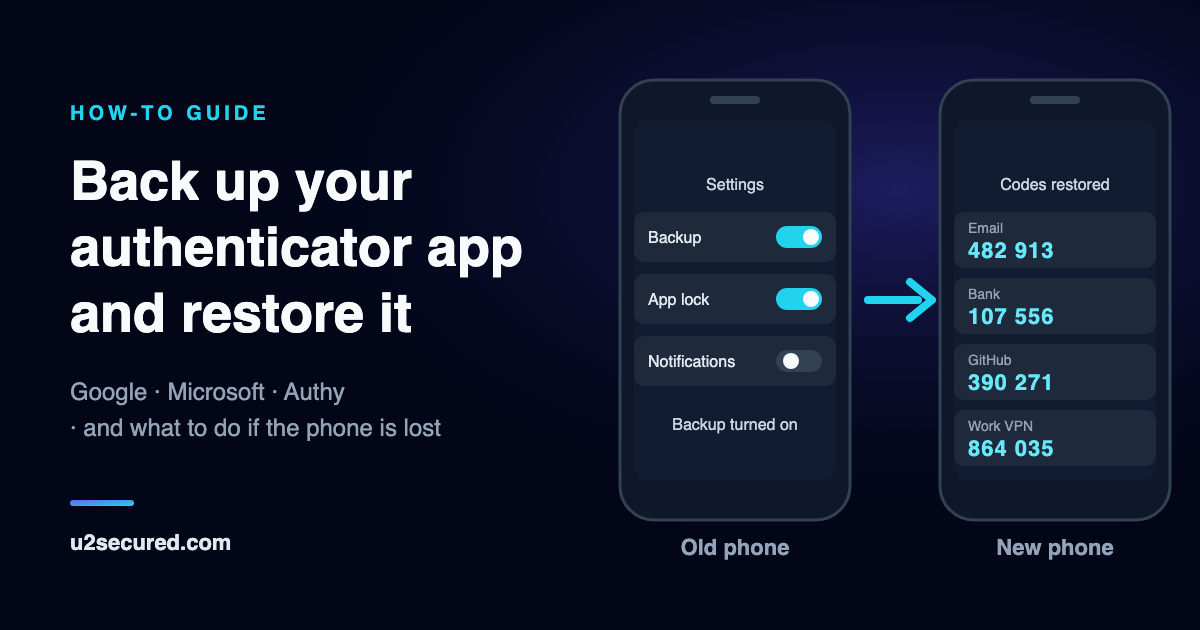
Why authenticator app backups matter
An authenticator code is calculated from a secret the site gave your phone when you scanned its QR code. The site never sends that secret again. If the only copy was on a phone that is now lost, no app and no support team can recreate it: you are left with each site’s own recovery process.
A backup keeps a second copy of those secrets somewhere you can reach from a new phone. It is worth ten minutes now, and it is worth checking it actually works, because a backup you have never restored is a hope rather than a plan.
First, save each site’s backup codes
App backups and site backup codes protect against different failures, so you want both. Your app’s backup brings back your codes on a new phone. A site’s backup codes get you into that one account even when you have no codes at all.
Google’s own account is a typical example: it gives you a set of 10 backup codes, each one works once, and you can make a new set at any time, which switches the old set off. Most sites work the same way.
- Save them when you turn on 2FA. Many sites show them only once; if you skipped that step, look for “backup codes” or “recovery codes” in the site’s security settings and generate a new set.
- Keep them away from the phone: printed with your important papers, or in a password manager you can open from another device.
- Never send them to yourself by email or chat, and never share them. Anyone who has one can pass your second factor.
- Cross each one off when you use it, and make a new set when you are running low.
How to back up Google Authenticator
Google Authenticator backs up by syncing your codes to a Google Account. Open the app and sign in to a Google Account when it asks; if you chose “Use without an account” earlier, tap the profile picture and sign in. Sync needs version 4.0 or later on iPhone and 6.0 or later on Android. On a new phone, install the app and sign in to the same Google Account, and your codes appear.
What it does not protect: if you use the app without an account, your codes are on the phone alone and there is no backup. Synced codes are protected by your Google Account, so anyone who gets into that account gets them too. The app also has a manual export (Menu, then Transfer accounts on iPhone or Transfer codes on Android, then Export), but that is a one-off QR code for moving phones, not a running backup.
Google’s help page warns that switching to “Use Authenticator without an account” removes the codes from your Google Accounts and keeps them only on the device. Do not tap it unless that is what you want.
How to back up Microsoft Authenticator
On an iPhone, Microsoft Authenticator backs up through iCloud. Turn on iCloud Drive, iCloud Keychain and iCloud Backup, then go to Apple Account, iCloud, Saved to iCloud, find Authenticator and turn it on. On Android, open the app, open the menu, choose Settings, turn on Cloud Backup and pick the Microsoft personal account to store it in. That account is your recovery account.
What it does not protect: Microsoft says you can only back up and restore on the same device type, so an iPhone backup cannot be restored on Android or the other way round. Codes for personal Microsoft accounts and third-party sites are backed up. For work or school accounts, only the account name is backed up and you sign in again on the new phone.
Microsoft says that from January 2027, Android backup will no longer use a Microsoft personal account: you will turn on Microsoft Authenticator in Google One backup instead. If you rely on the Android backup, check which one yours uses after that date.
How to back up Authy
Authy calls its backup Backups. On Android, tap the … menu, then Settings, then the Accounts tab, and turn on Backups. On an iPhone, tap Settings, then the Accounts tab, and turn on Backup Password. Either way you set a backups password, which encrypts your codes on your phone before an encrypted copy is saved by Twilio. Twilio says this password is never sent to or stored on its servers.
What it does not protect: without Backups, Twilio says your codes are stored only on the device. With Backups on, the password is the key: Twilio cannot recover or reset a forgotten one, and if you also have no working device, the backed-up codes cannot be decrypted. An Authy account is also tied to your phone number, so keep that number current. The Authy Desktop apps reached end of life on 19 March 2024, and the app has no export feature.
Check that your backup works
A backup is only proven by a restore. Without risking anything, you can check that the switch is on, that you know the password or account it depends on, and that a second device can see your codes where the app supports that. Then, before you wipe or trade in a phone, sign in to two or three important accounts with codes from the new phone first.
Already lost your phone? What can still help
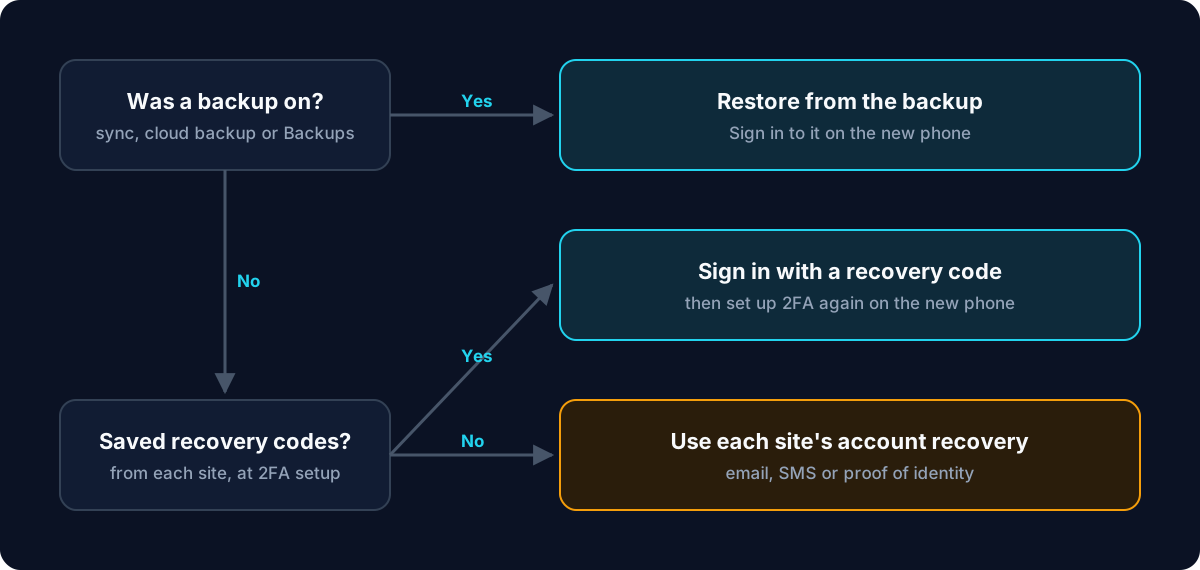
Be honest with yourself about what existed before the phone went. Only two things can bring codes back: a backup that was turned on before the loss, or the backup codes you saved from each site. No app can recover codes that were never backed up, and that includes ours.
- A backup was on: install the same app on the new phone and sign in to the account the backup lives in (Google Account, iCloud or Microsoft account, or Authy with your phone number and backups password).
- No backup, but you saved recovery codes: sign in to each site with one, turn two-step verification off and on again, and scan the new QR code with the new phone.
- Neither: use each site’s account-recovery process, which usually means email or SMS confirmation, or proof of identity. Then set up 2FA again, and save the new backup codes this time.
- In every case, erase the lost phone remotely if you can, with Find My on iPhone or Find Hub on Android.
How the U2 Secured Authenticator backup works
U2 Secured Authenticator gives you free, unlimited codes. Premium, at $14.99 a year, adds an end-to-end-encrypted backup: your codes are encrypted on your phone with a key derived from your password before anything is uploaded, so we store only ciphertext and cannot read your codes. That is what zero-knowledge means: the key never leaves your devices.
Once it is on, the backup keeps itself up to date: every code you add or change is synced, with no manual step. When you turn it on, you also save a recovery key. If you forget your password, the recovery key opens the backup and lets you set a new password, so a forgotten password does not mean starting again.
The backup lives in your U2 Secured account, which you sign in to with your email address, not a phone number, and not in iCloud or a Google Account. That means you can restore it on an iPhone or an Android phone, whichever you buy next. Your account lives on one phone at a time: when you sign in on the new phone, your codes are restored there and removed from the old one, so a phone you sell or lose does not keep a working copy. With the backup on, the web portal at auth.u2secured.com also shows your live codes in any browser, read-only and decrypted on your computer.
On the free plan there is no cloud backup: your codes live only on your phone, and they go with it. If you stay on free, the backup codes from each site are your safety net, so save them. Moving in is quick from Google Authenticator on either plan: in U2 Secured, tap +, then Bulk import, then Import from Google Authenticator, and scan Google’s export QR code. Microsoft Authenticator and Authy have no export, so for those you add each account from the site’s own 2FA settings.
Like any backup, ours only helps if it is turned on before the phone is lost. Restoring needs an active Premium subscription: if it ends, your backup is kept but paused until you resubscribe. And if you lose both your password and your recovery key, we cannot open your backup either: we never hold the key.