Is there a Google or Microsoft Authenticator app for PC?
No. Google’s help page for Google Authenticator lists Android phones and tablets and the iPhone and iPad, and nothing else. Microsoft is explicit: its support page says Microsoft Authenticator “is not available for PC or Mac, because authenticator apps are designed for smartphones for security reasons.”
Authy used to be the common answer. Twilio ended the Authy Desktop apps for Windows, macOS and Linux on 19 March 2024, and recommends its mobile apps instead. Guides written before then that point to an Authy download no longer apply.
Downloads and browser extensions that use these names are made by other developers, not by Google or Microsoft. Some are fine, but check who publishes one before you give it your 2FA secrets: whoever runs it can read every code.
Why authenticator apps live on your phone
Two-factor authentication works because the two factors are separate: something you know (your password) and something you have (the device that makes the codes). An attacker who steals your password still needs the device.
Put the codes on the same computer you sign in from, and that separation gets thinner. Malware on that computer, or someone at an unlocked laptop, can reach the password and the code in the same place. Codes on a computer are still far better than no 2FA at all, but your phone is the stronger place to keep the main copy, and this is the reason Microsoft gives for not making a desktop app.
- Keep the phone as the main device for your codes.
- If you also want codes on a computer, protect that computer: a screen lock, disk encryption, and a separate password or unlock step on whatever holds the codes.
- Save each site’s backup codes somewhere that is neither your phone nor that computer.
Your options for 2FA codes on a computer
Every option below uses the same standard (TOTP), so the six-digit code is identical whichever app makes it. What changes is where the secret is kept and who could get at it.
- A desktop authenticator app for Windows or Mac: codes are stored on that computer. Look for one that encrypts its data under a password and can export, so you are not locked in.
- A browser extension (Chrome, Edge, Firefox or Safari): codes are a click away on any site, but they sit in the same browser as your saved passwords. Check the publisher and the permissions it asks for.
- A password manager that stores TOTP codes: it fills the code for you. On a Mac, Apple’s Passwords app can store verification codes. The trade-off is that both factors then sit behind one master password.
- A phone app with a way to see your codes on a computer: the phone keeps the main copy, and a browser shows the codes when you are at your desk.
- A security key or a passkey, where a site supports one: this replaces the code rather than moving it, and is worth turning on wherever it is offered.
Codes on your computer with U2 Secured Authenticator
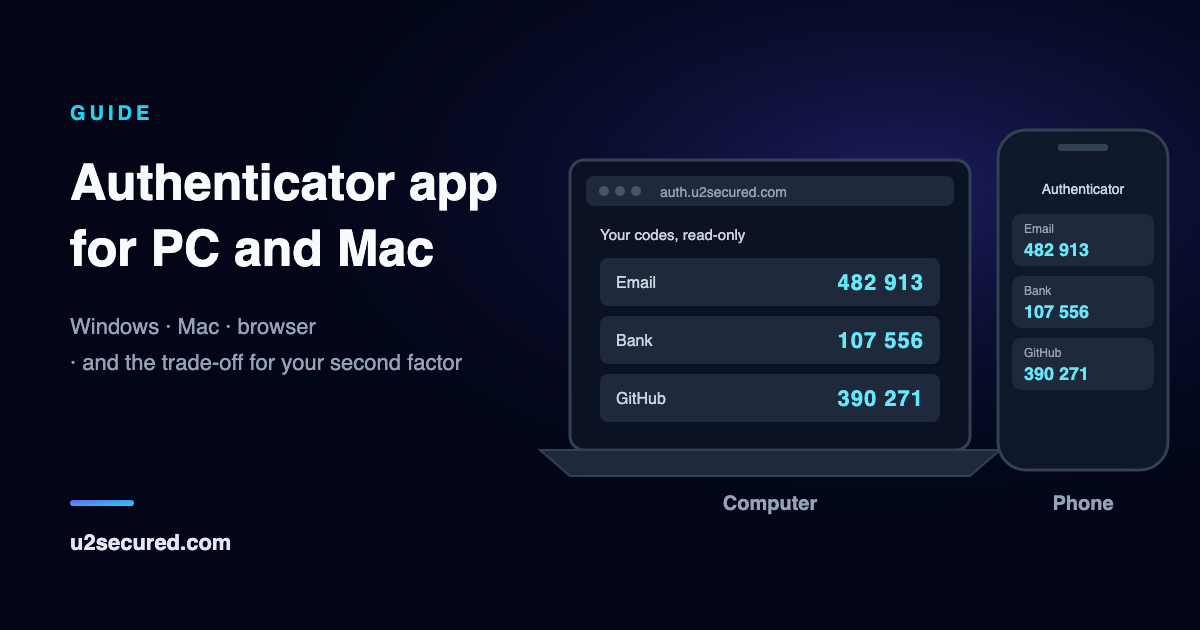
U2 Secured Authenticator has no desktop app either. It is a phone app for iPhone and Android, with free, unlimited codes. What Premium, at $14.99 a year, adds for computers is a web portal: once encrypted backup is turned on in the phone app, you can sign in at auth.u2secured.com on any computer and see your live codes in the browser.
Your codes are decrypted in the browser, on your computer, with a key derived from your backup password. The server only ever holds ciphertext. Signing in takes your password and then a code sent to your email, the key is kept only in the page’s memory, and the page locks itself after five minutes without activity.
The codes page is read-only: you can see, search and copy codes, but you cannot add, edit or delete an account there. You add accounts on the phone, by scanning the site’s QR code. The one way to add accounts from the web is Import, which reads exports from Google Authenticator, Aegis and 2FAS, or a list of otpauth:// links; the phone picks the imported accounts up when it next syncs.
This keeps the phone as the place your codes are made and managed, with the computer as a window onto them. It does not remove the trade-off above: while the portal is unlocked, your codes are on the screen of the computer you are signing in from, so lock it when you step away.
The web portal needs Premium and backup turned on in the app first. On the free plan your codes live only on your phone, and the portal has nothing to show. If Premium ends, your backup is kept but the portal stops showing codes until you resubscribe.
Which option fits you
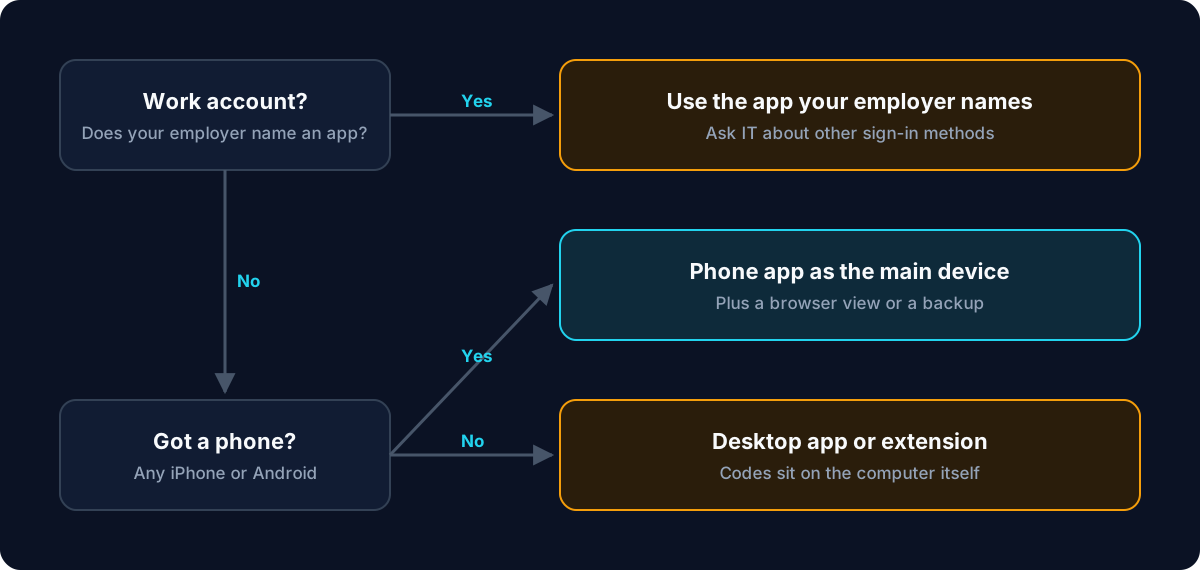
Start with the account. If your employer tells you to use a specific app, such as Microsoft Authenticator for a work account, use that app: no other authenticator, ours included, is a drop-in replacement for an app your organisation has chosen, and only your IT team can offer another sign-in method.
For your own accounts, keep codes on your phone and add a view on the computer if you need one. Only with no phone at all is a desktop app or extension the main option, and then the computer it runs on deserves the same care as the phone would have had.
Not the same thing: Windows sign-in with 2FA
Some searches for an “authenticator for Windows” are really about protecting the Windows sign-in screen or Remote Desktop with a second factor. That is a different job, and U2 Secured does it too: our Windows two-factor authentication page, linked below, covers sign-ins that wait for an approval on your phone.