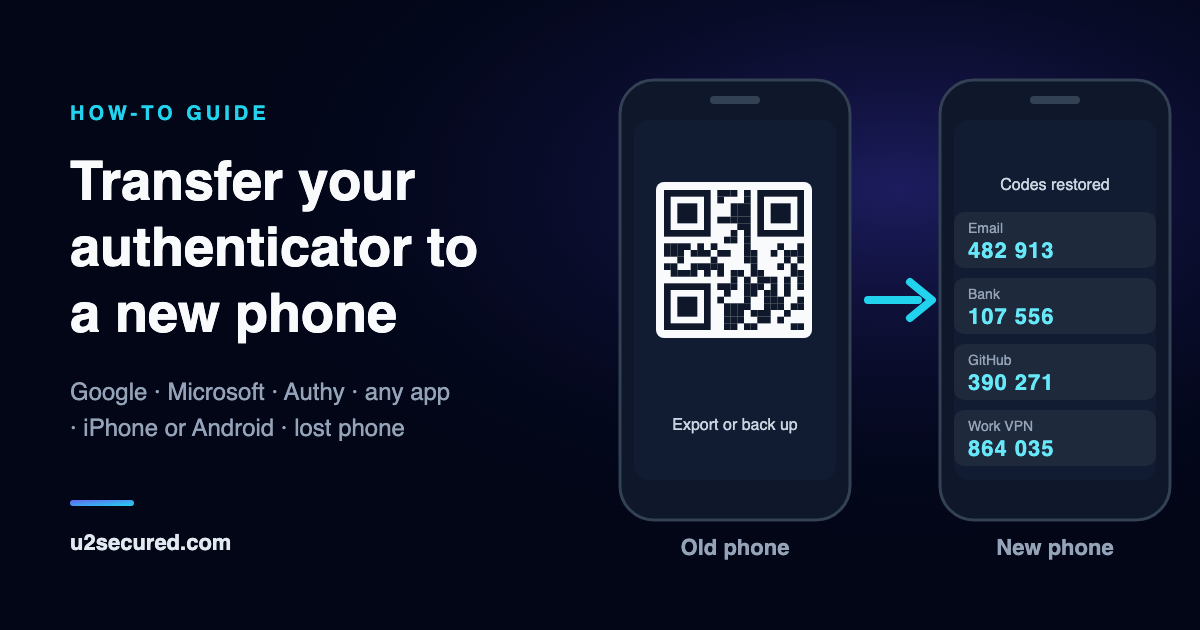
How to move 2FA to new phone: which method fits
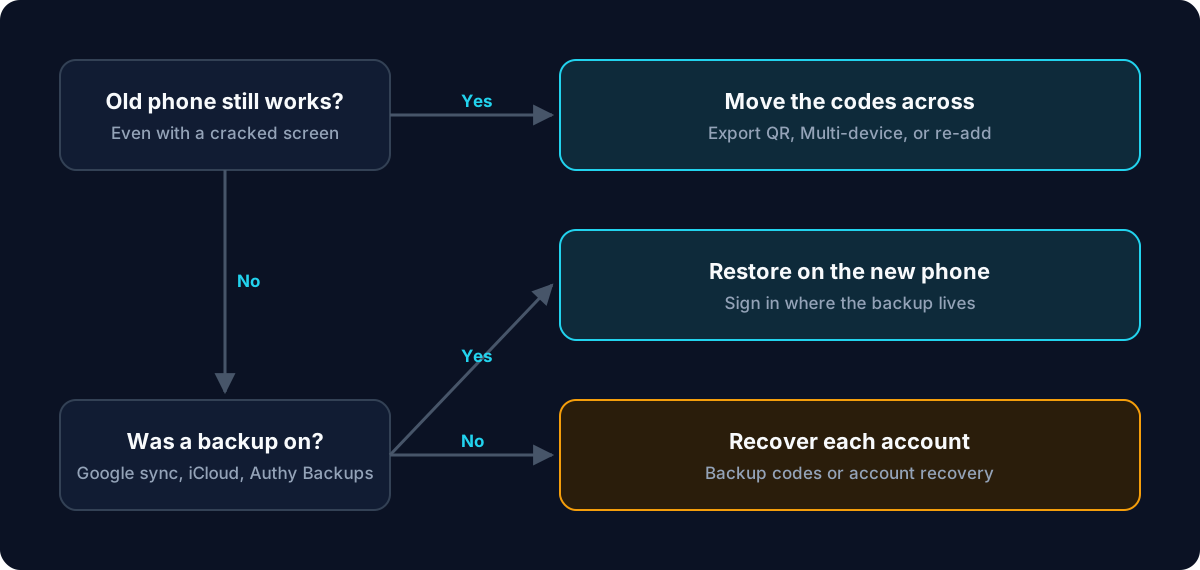
Two questions decide it, whatever the app. Does the old phone still work, even with a cracked screen? And was the app’s backup turned on before you needed it? Then it depends on the app:
- Google Authenticator: scan the export QR code from the old phone, or sign in to the same Google Account on the new phone if your codes were synced.
- Microsoft Authenticator: restore from iCloud on an iPhone or from Cloud Backup on Android, on the same kind of phone only, then sign in again to work or school accounts.
- Authy: with Backups on, add the new phone through Multi-device and enter your backups password.
- Any other authenticator app: use its own export or backup if it has one. If not, add each account again from the site’s two-factor settings.
Google Authenticator: export QR code or Google Account sync
With the old phone in hand, open Google Authenticator there, tap the Menu icon, then Transfer accounts (iPhone) or Transfer codes (Android), then Export, choose the accounts and tap Next. On the new phone, open the same menu, choose Import and scan the QR code. A long list shows as several QR codes: scan every one.
If you were signed in to a Google Account in the app, your codes are synced. Install Google Authenticator on the new phone and sign in to the same account, and they appear, even if the old phone is gone. Sync needs version 4.0 or later on iPhone and 6.0 or later on Android.
The export QR code holds working copies of your codes. Show it somewhere private, and never send a screenshot of it to yourself.
Microsoft Authenticator: backup and restore on the same kind of phone
Turn on the backup on the old phone first. On an iPhone it rides on iCloud: go to Apple Account, iCloud, Saved to iCloud, and turn on Authenticator. On Android, open the app’s Settings and turn on Cloud Backup with a Microsoft personal account. On the new phone, install Microsoft Authenticator and choose Begin recovery or Restore from backup before adding anything else.
Codes for personal and third-party accounts come back. Work or school accounts come back as a name only, so open each one and sign in again. Microsoft says a backup can only be restored on the same device type, and its advice is to keep the old phone until you have signed in to your important accounts from the new one.
Authy: Backups and Multi-device
On the old phone, open Settings, then the Accounts tab, and check that Backups is on. In the Devices tab, turn on Allow Multi-device. Install Authy on the new phone, enter the same phone number, accept the request on the old phone, then enter your backups password on the new one. Once a code works, remove the old phone and turn Multi-device off again.
Twilio says nobody can recover a forgotten backups password, so check you know it while the old phone still shows your codes, and change it there if you are not sure.
Any other authenticator app: export, or re-add each account
Look in the app’s settings for an export, transfer or backup option, and use it while the old phone works. Google’s export QR code uses a migration format that many other apps can import, so moving out of Google Authenticator is often one scan.
If the app has no export, nothing is lost as long as the old phone works: you add each account to the new phone yourself. This works with every app, because it uses the site’s own two-factor setup rather than the app.
- On a computer, sign in to the site and open its security or two-step verification settings.
- Choose to set up, change or replace the authenticator app, and scan the new QR code with the new phone.
- Enter a code from the new phone to confirm it, then delete that account from the old phone.
- Save any new backup codes the site shows you, somewhere that is not your phone.
Transfer authenticator from iPhone to Android (or Android to iPhone)
Some methods cross between platforms and some do not. Check which one your app uses before you hand back the old phone.
- Google Authenticator: both routes cross. The export QR code is just a picture any phone can scan, and sync follows your Google Account, not the phone.
- Microsoft Authenticator: the backup does not cross, and the app has no export. Re-add each account on the new phone while the old one still works.
- Authy: Twilio describes Backups as syncing across device types, so the same Multi-device steps work from iPhone to Android and back.
- Other apps: an export QR code or file usually crosses. A backup kept in iCloud or in a phone maker’s account may not, so check before you rely on it.
Restore authenticator app on new phone when the old phone is lost or broken
Be honest about what existed before the phone went. An authenticator code is calculated from a secret each site gave your phone once, and that site never sends it again. Without a backup, the secret was only on that phone, and no app or support team can pull codes off a dead phone or recreate them. What can still help:
- If the old phone still powers on, even with a broken screen, try to get it working long enough to export or to approve the new phone.
- A backup was on: install the same app on the new phone and sign in where the backup lives: your Google Account, iCloud or Microsoft account, or Authy with your phone number and backups password.
- No backup, but you saved backup codes: sign in to each site with one, turn two-step verification off and on again, and scan the new QR code.
- Neither: use each site’s account-recovery process, which usually means an email or SMS confirmation or proof of identity, or contact the site’s support. For work or school accounts, your IT help desk re-registers you.
- Erase the lost phone remotely if you can, with Find My on iPhone or Find Hub on Android.
Account recovery can take days, and some sites cannot help at all. Once you are back in, save each site’s new backup codes and turn on a backup, so the next phone change is a restore.
Authenticator not working on new phone? Check the clock
If codes appear but sites reject them, the phone’s clock is the usual cause: codes are calculated from the current time. Set the date and time to automatic in the phone’s settings and try a fresh code. Google Authenticator uses the phone’s own time from version 7.0, with no correction inside the app.
If one account still fails, it may not have been in the export or the backup. Check the old phone, or add that account again from the site’s settings.
Before you wipe the old phone
Sign in to two or three of your most important accounts with codes from the new phone, including any work account. Only when those work should you delete the accounts from the old phone, or reset it. Delete them deliberately rather than leaving a second working set of your codes in a drawer.
Make your next phone change a restore
U2 Secured Authenticator gives you free, unlimited codes. Premium, at $14.99 a year, adds an end-to-end-encrypted backup: your codes are encrypted on your phone before anything is uploaded, so we store only ciphertext and cannot read them. The backup lives in your U2 Secured account, not in iCloud or a Google Account, so you can restore it on an iPhone or an Android phone, whichever you buy next.
Your account lives on one phone at a time: when you sign in on the new phone, your codes are restored there and removed from the old one. A recovery key you save when you turn the backup on opens it if you forget your password. On the free plan there is no backup, and codes live only on your phone. Bringing codes in from Google Authenticator is free on either plan: tap +, then Bulk import, then Import from Google Authenticator, and scan Google’s export QR code. Microsoft Authenticator and Authy have no export, so for those you add each account from the site’s own settings.
Like any backup, ours only helps if it is turned on before the phone is lost, and restoring needs an active Premium subscription. If you lose both your password and your recovery key, we cannot open your backup either.