Check your Pi runs 64-bit Raspberry Pi OS
The package is built for 64-bit systems only. Raspberry Pi says the 64-bit OS is for models with 64-bit processors, like the Raspberry Pi 3, 4 and 5; the original Raspberry Pi, the Pi 2 and the Pi Zero are 32-bit. Check what yours is running:
dpkg --print-architecture # arm64 is what you needIf that prints armhf, you are on 32-bit Raspberry Pi OS and the package will not install. On a Pi 3 or newer, reinstall with the 64-bit image using Raspberry Pi Imager. On a 32-bit model, this guide cannot help yet.
Make sure SSH works with a key
SSH has to be on, and you need to be logging in with a key already, because the key stays your first factor. To turn SSH on, run sudo raspi-config, then choose Interfacing Options, SSH, Yes. Then copy your key across from your computer, and check you can log in without a password before you go on:
ssh-copy-id [email protected]
ssh [email protected]
Create an account and an app
SSH with U2 Secured needs an app in the developer portal, because that is what sends the push. The free Developer plan covers it: 1 app, up to 1,000 active users and 100 push approvals a month. Codes from the app and backup codes are never metered.
In the portal, create a new app and name it after the machines it protects, since people see that name on every approval. Copy its API key (rka_…). It is shown once.
Install the package on the Pi
Add the signed U2 Secured repository and install from it, so that apt upgrade keeps it up to date. Check the key’s fingerprint against the comment before trusting it. Installing it changes nothing yet: no login is affected until you finish the steps below.
curl -fsSL https://u2secured.com/downloads/linux/u2secured.gpg | sudo tee /usr/share/keyrings/u2secured.gpg > /dev/null
gpg --show-keys /usr/share/keyrings/u2secured.gpg   # B725 4213 9302 02C4 8B19  6810 E6C4 2653 4D95 43BA
echo "deb [signed-by=/usr/share/keyrings/u2secured.gpg] https://u2secured.com/downloads/linux stable main" \
  | sudo tee /etc/apt/sources.list.d/u2secured.list
sudo apt update && sudo apt install u2auth
u2auth-admin help
Add the API key to the config
Create the config from the example the package installs, then set three values: api_key, issuer (the name of the code entry in the app) and bypass_users (your emergency account). It holds this Pi’s API key, which is why it is readable by root only.
sudo install -m 0600 /usr/share/doc/u2auth/u2auth.conf.example /etc/u2auth/u2auth.conf
sudoedit /etc/u2auth/u2auth.conf   # api_key, issuer = your fleet's name, bypass_users = break-glass
Pair your phone
Install the U2 Secured Authenticator on your phone (free on the App Store and Google Play). Then enrol each person who signs in. The commands below use the login name bob.
sudo u2auth-admin enroll bob              # --no-pair: codes only, no phone pairing
sudo u2auth-admin status- Enter the pairing code in the app: Linked tab, then +. It lasts 10 minutes.
- Add the code entry it prints to the app’s Add account screen. This is your offline code.
- Save the ten backup codes somewhere safe. They are shown once.
- Check that status shows the person as paired before going on: someone in the gated group with no paired phone is refused.
Turn it on for SSH
Keep your current SSH session open until a new login works. A mistake in PAM or sshd can lock everyone out, and that session is how you undo it. If you do get locked out of a Pi, plug in a keyboard and screen and sign in at the console: this setup changes SSH only.
First, tell sshd to ask for the key and then for U2 Secured, for members of a group called u2mfa:
# /etc/ssh/sshd_config.d/u2auth.conf
UsePAM yes
KbdInteractiveAuthentication yes
Match Group u2mfa
    AuthenticationMethods publickey,keyboard-interactive
Add the module to PAM
In /etc/pam.d/sshd, replace the line “@include common-auth” with these three. Members of u2mfa sign in with their key plus U2 Secured, with no password prompt, and everyone else carries on as before.
# /etc/pam.d/sshd — in place of "@include common-auth"
auth [success=ok default=1] pam_succeed_if.so quiet user ingroup u2mfa
auth [success=done default=die] /usr/lib/u2auth/pam_u2auth.so
@include common-auth
Add yourself to the group and reload sshd
sshd -t checks the config first, so a typo stops here instead of reaching the running service.
sudo groupadd u2mfa
sudo usermod -aG u2mfa bob
sudo sshd -t && sudo systemctl reload ssh
Test every outcome from a new terminal
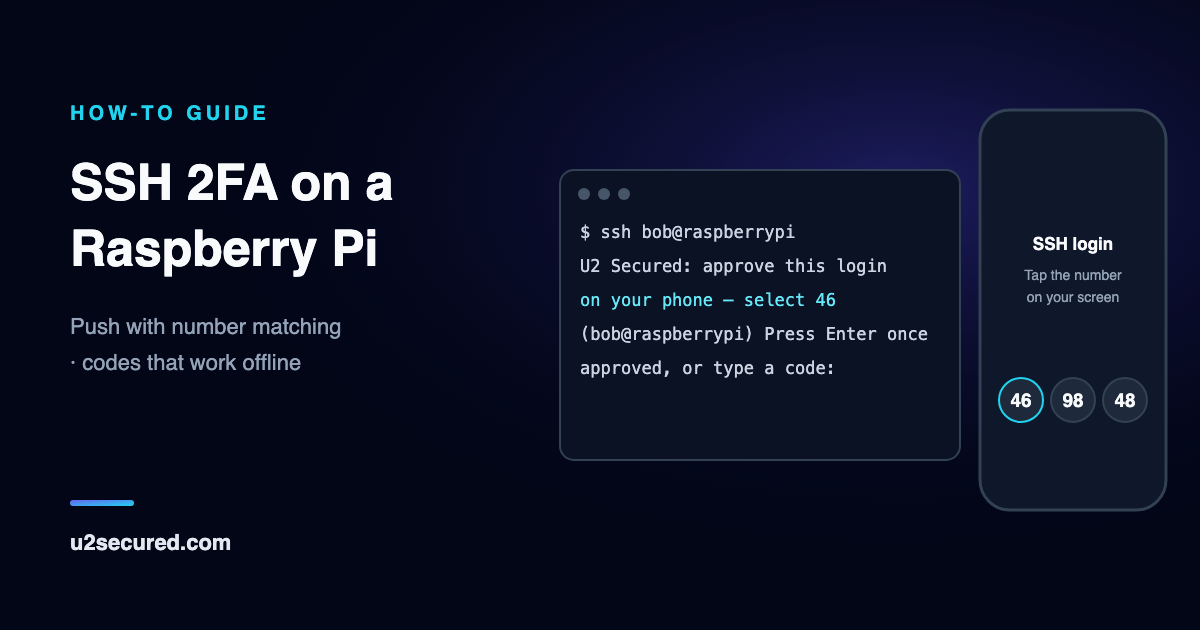
Leave the first session open and try these from a second terminal. Over SSH you press Enter as well as tapping, before or after: OpenSSH only shows the number together with a prompt.
- Log in, tap the number the terminal shows and press Enter: the shell opens.
- Tap a wrong number, or Deny: “Permission denied”, the connection ends, and the phone does not ring again.
- Run sftp as the same user: you get the same prompt, and it works.
- Log in as your emergency account: no prompt, straight through.
Logging in when the network or the clock is wrong
If the Pi cannot reach U2 Secured, the prompt says so and asks for a code instead. The code from the app and the backup codes are checked on the Pi itself, so this works with no internet connection at all, as long as you can still reach the Pi on your own network.
The app’s code depends on the time, and that can catch a Pi out. Earlier models have no real-time clock, and on the Raspberry Pi 5 it needs a battery to keep running without power. A Pi that restarts with no internet may therefore have the wrong time and refuse a correct code from the app. Backup codes do not depend on the time, so one of those still gets you in.
Keep your backup codes somewhere you can reach without the Pi. They are the login that still works when the network and the clock are both wrong.
What this does not stop
A second factor protects the sign-in. It is not a substitute for the rest of a server’s upkeep.
- It does not fix a vulnerable sshd or anything else on the machine: keep installing updates.
- It does not protect the machine from someone who is already root, who can edit PAM or turn the check off.
- Your emergency account skips U2 Secured by design, so its key deserves the most care. Keep it offline.
- Number matching makes an unexpected push much harder to approve by reflex, but a person can still be talked into approving one. Treat any push you did not start as an attack, and deny it.
How we tested this guide
On 2 November 2026 we ran these install commands against the live repository, then our SSH test suite, on the official Raspberry Pi OS Lite 64-bit image dated 6 October 2026 (Debian 13). All 32 scenarios passed: approving, wrong numbers, denials, sftp, tunnels, offline codes, spent backup codes and logins with the service unreachable.
That ran the real OS in a container on an arm64 computer, with real ssh and sshd and a simulated phone. It has not yet been run on a physical Raspberry Pi. The same package has been run end to end with a real iPhone on Ubuntu on arm64.