What a Chrome password export contains
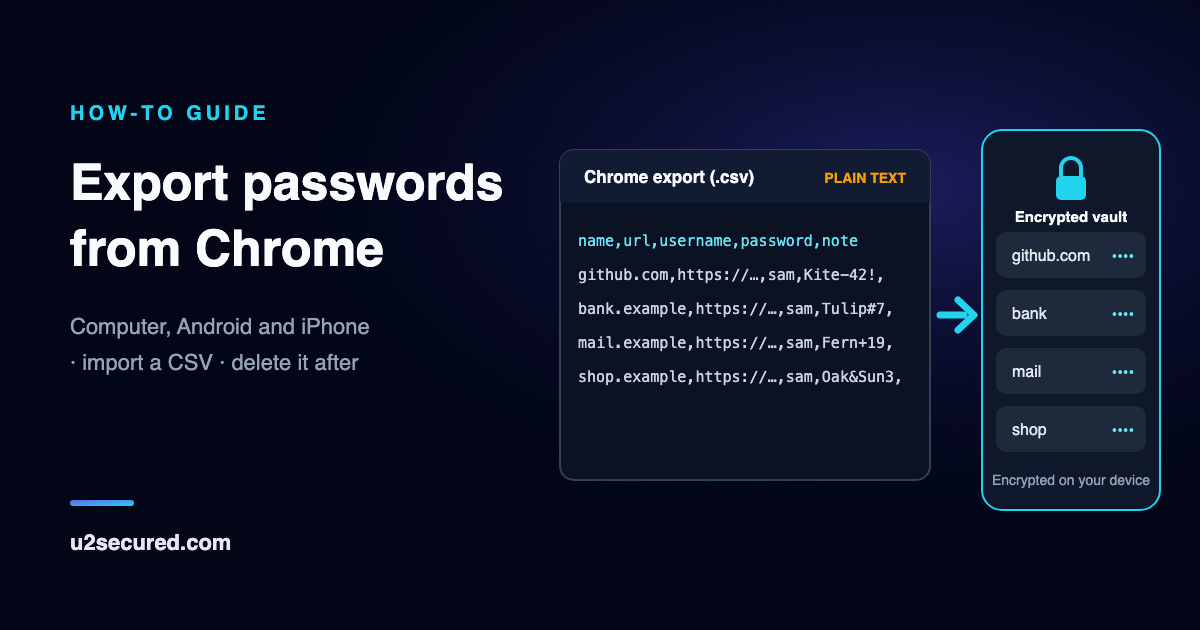
The export is one CSV file with five columns: name, url, username, password and note. That header comes straight from Chrome’s source code, so it is the same whichever device produced the file. Each saved login is one row, and the password column is the password itself, not a scrambled copy.
Only passwords are in it. Passkeys are not written to the CSV, and neither are the payment cards and addresses Chrome saves for autofill. Exporting copies your passwords; it does not remove them from Chrome.
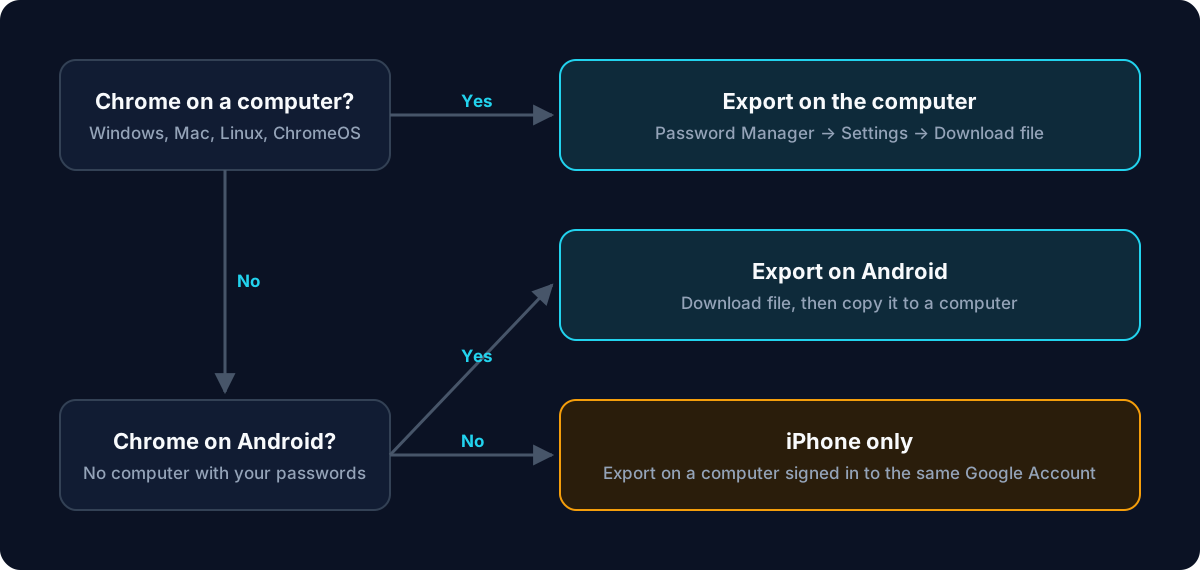
Export passwords from Chrome on a computer
This is the same on Windows, Mac, Linux and ChromeOS. You can also paste the address below into Chrome’s address bar to jump straight to step 4.
chrome://password-manager/settings- 1. Open Chrome.
- 2. At the top right, select the three-dot More menu, then Passwords and autofill.
- 3. Select Google Password Manager, then Settings on the left.
- 4. Scroll to “Export passwords” and select Download file.
- 5. If Chrome asks you to confirm it is you, enter your computer’s password, then choose where to save the .csv file.
Save it somewhere you will remember, not a shared or synced folder, and do not email it or upload it anywhere. It is every saved password in readable text until you delete it.
Export Chrome passwords on Android
Chrome on Android can save the same CSV to your phone. You need a screen lock (a PIN, pattern or fingerprint) set up first: Google says you will be asked to set one up if you do not have one.
Most password managers, including ours, import that file on a computer, so the extra step on a phone is getting the file there safely: a USB cable is the most private way. If you also use Chrome on a computer signed in to the same Google Account, it is simpler to export there instead.
- 1. Open Chrome and tap the three-dot More menu, then Settings.
- 2. Tap Autofill and passwords, then Google Password Manager.
- 3. At the bottom, tap Settings.
- 4. Tap Export passwords & passkeys (it may just say Export passwords), then Download file.
- 5. Confirm with your screen lock and save the file.
Export Chrome passwords on an iPhone
On an iPhone or iPad, Chrome’s export works differently. In Chrome, tap More, then Settings, then Autofill and passwords, then Password Manager, then Settings at the bottom left, then Export data. You pick the passwords or passkeys to send, tap Continue, and choose another app on the phone to receive them. Google’s page says you can also export as a CSV file, but it does not give the steps.
If the place you are moving to needs a CSV, the dependable route is a computer: Chrome passwords saved to your Google Account appear in Chrome on any computer signed in to that same account, so export there with the steps above.
Exporting from Edge or Brave instead
Brave is built on the same open-source code as Chrome and uses Chrome’s own CSV writer for its export, so a Brave export has the same five columns and can go anywhere a Chrome export can, including U2 Secured. Its password settings are Chromium’s, so the menus are close to the computer steps above.
Microsoft Edge is also built on Chromium, but Microsoft does not document the columns its export uses and we have not checked an Edge file ourselves, so we make no promise about it. You can still try it safely: our importer reads the file’s first line, and if any of the columns it needs is missing, it refuses the file and names the missing columns before anything is uploaded.
How to import passwords into Chrome from a CSV
Going the other way, Chrome on a computer or Android imports a .csv file whose first line includes the column names url, username and password. A Chrome export already has them. A file from somewhere else may need its first line edited to match.
Google’s limits: 3,000 passwords per file (split a bigger list into several files), and up to 10,000 passwords in a Google Account. On an iPhone, Google describes no CSV import: you send passwords to Chrome from another app’s own export instead, choosing Chrome as the destination.
- On a computer: More, then Passwords and autofill, then Google Password Manager, then Settings. Under “Import passwords”, click Select file, choose the .csv file and follow the prompts.
- On Android: More, then Settings, then Autofill and passwords, then Google Password Manager. At the bottom right, tap Settings, then Import passwords, confirm it is you, choose the .csv file and tap Import.
- If an imported password seems to be missing, search for the site name: Google notes that not every name lands in the right field.
Google’s own instructions end the same way ours do: delete the .csv file once the import is done, because anyone who uses the device can otherwise open it and read your passwords.
Import your Chrome passwords into U2 Secured
U2 Secured Password Vault reads Chrome’s CSV directly. The file is read and each login is encrypted in your browser before anything is uploaded, so our servers only ever receive ciphertext. Import is in the web vault, so do this on a computer.
You need to be the workspace owner or an admin, which on a new personal account is you. The file can be up to 10 MB, and the free plan holds 500 items. Importing the same file twice is safe: logins already in your vault are skipped.
Chrome never stored two-factor codes, so the Chrome file has none to bring across. If you later import from a password manager that kept two-factor secrets beside your passwords, U2 Secured does not put them in the vault: it hands each one back as a QR code for you to scan into an authenticator app, so a password and its second factor never sit in the same place.
- 1. Sign in to the web vault at vault.u2secured.com (or create a free account).
- 2. Open Settings, then Import, and select Import passwords.
- 3. Under “Where are your passwords now?”, choose Chrome or Edge, then pick or create the folder to import into.
- 4. Choose your Chrome .csv file.
- 5. Read the review: how many logins are ready, how many are already in your vault, which rows could not be read and why, and how much room your plan has left.
- 6. Select Import, and wait for it to finish.
Do not open the CSV in Excel and save it before importing. Excel can re-save it in a different text encoding, and the importer will ask you to export again rather than guess at the contents.
Delete the CSV file properly
Once the import has finished and you have checked a few logins, the file has no further use. Delete it straight away, and do not keep it “just in case”: a backup of your passwords in plain text is the thing an attacker would most like to find on your computer.
- Delete the file, then empty the Recycle Bin or Trash. A file in the trash is still a file.
- If you exported on a phone, delete it from the phone’s Downloads too, and from anywhere you copied it on the way.
- If your Downloads or Documents folder syncs to a cloud drive, delete it there as well, including the cloud drive’s own bin.
- If you ever emailed or messaged the file to yourself, delete that message and its copy in Sent.
Should you turn off Chrome’s password saving afterwards?
If you are moving to a password manager, usually yes. With both active, Chrome and your password manager each offer to save every new password, and anything you accept in Chrome stays out of the new vault. Our browser extension offers to save new logins itself, so you lose nothing by switching Chrome’s offer off.
Turning saving off does not delete anything already saved. Leave your old passwords in Chrome for a few weeks while you check that every important login works from the new vault. When you are sure, you can remove them with Delete all Google Password Manager data in the same settings page.
- On a computer: Google Password Manager, then Settings, then turn off “Offer to save passwords and passkeys”.
- On Android: Google Password Manager, then Settings at the bottom right, then turn off “Offer to save passwords”.
- On an iPhone: Password Manager, then Settings at the bottom left, then turn off “Offer to Save Passwords”.
Two things to know first. On a computer the switch covers passkeys too, so Chrome will stop offering to save new ones. And “Delete all Google Password Manager data” removes passkeys as well as passwords, so if you sign in anywhere with a passkey Chrome saved, set up another way in first.